
Automatic allocation numbers: connect to the Tax Authority
Want SmartBill to request an allocation number for your invoice? Start by connecting to the Tax Authority. Once connected, SmartBill can request the number when you issue an eligible invoice. You do not need to submit a separate request on the Authority’s website each time.
An allocation number is a number the Israeli Tax Authority gives an invoice through Israel Invoice (חשבונית ישראל). It is separate from your regular invoice number. In SmartBill, look for רשות המיסים ・ מספר הקצאה (Tax Authority · allocation number). You may also know this connection as SHAAM. Some controls on this screen may appear in Hebrew even when your app is in English.
Before you start
Link to section: Before you start- Open the business you want to connect in SmartBill.
- Have your Tax Authority sign-in details and your phone ready, in case you are asked for a code. These are different from your SmartBill sign-in details.
- The person connecting must be allowed to act for the business at the Tax Authority. If the business does not appear there, ask the owner or the representative who manages its permissions.
- Your plan must include the automatic connection. If you see Upgrade plan, check your business’s plan.
Connect for the first time
Link to section: Connect for the first timeChoose your device:
-
Open Plugins in SmartBill’s side menu.
-
Open רשות המיסים ・ מספר הקצאה (Tax Authority · allocation number).
-
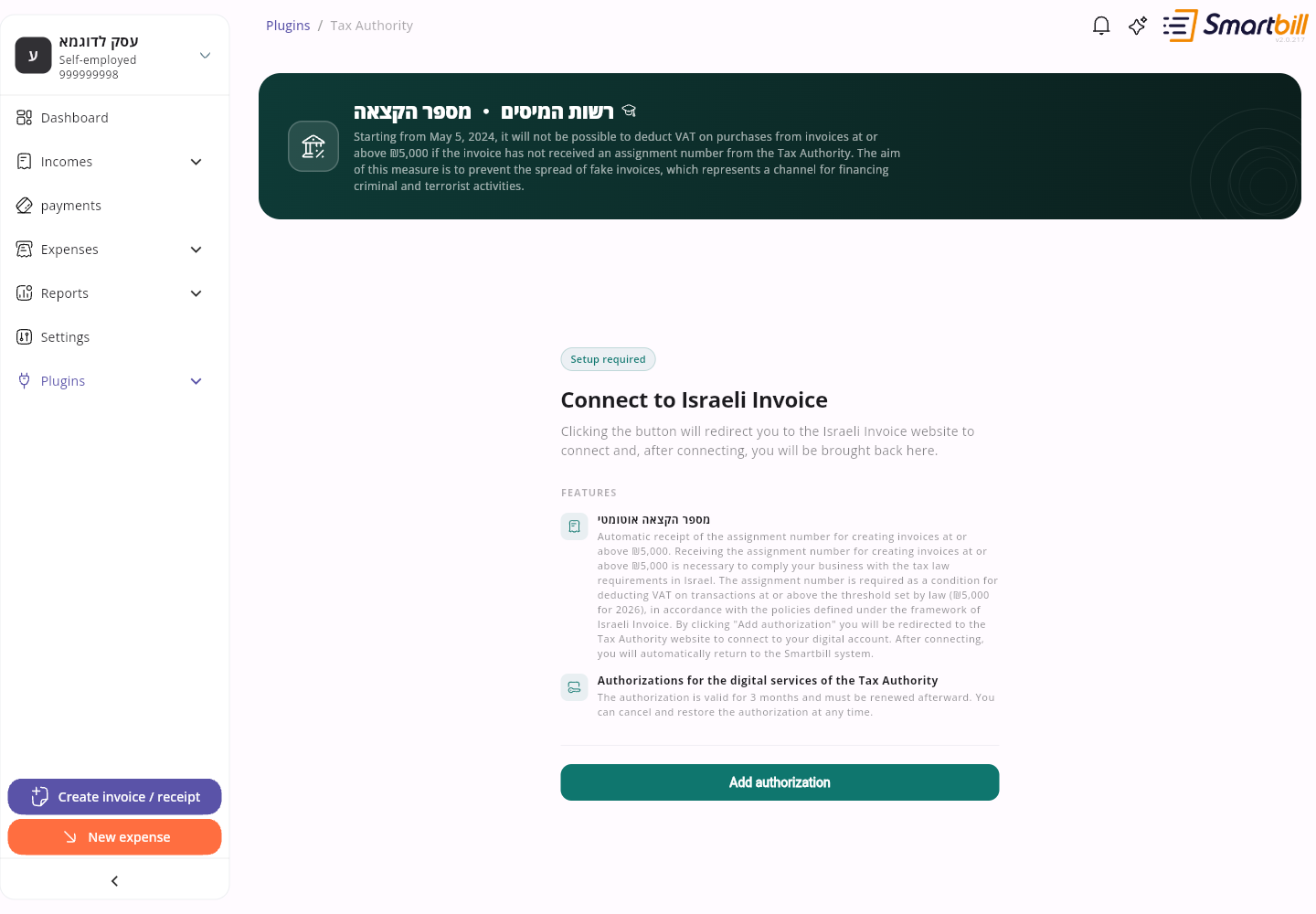
Select Add authorization. The Tax Authority website opens so you can approve the connection.
 Enlarge screenshot
Desktop browser — Under Plugins, choose the Tax Authority allocation-number connection. Select Add authorization to start. The plugin name remains in Hebrew in the English interface. Do not rely on the authorization period stated on this screen; use the renewal instructions in this guide. -
Complete the sign-in steps on that website. Check that you are allowing SmartBill to act for the correct business, then complete the approval.
-
Wait to return to SmartBill. If asked to sign in to SmartBill again, use the same account to finish connecting.
-
Tap your account picture and choose Plugins under Tools.
-
Open רשות המיסים ・ מספר הקצאה (Tax Authority · allocation number).
-
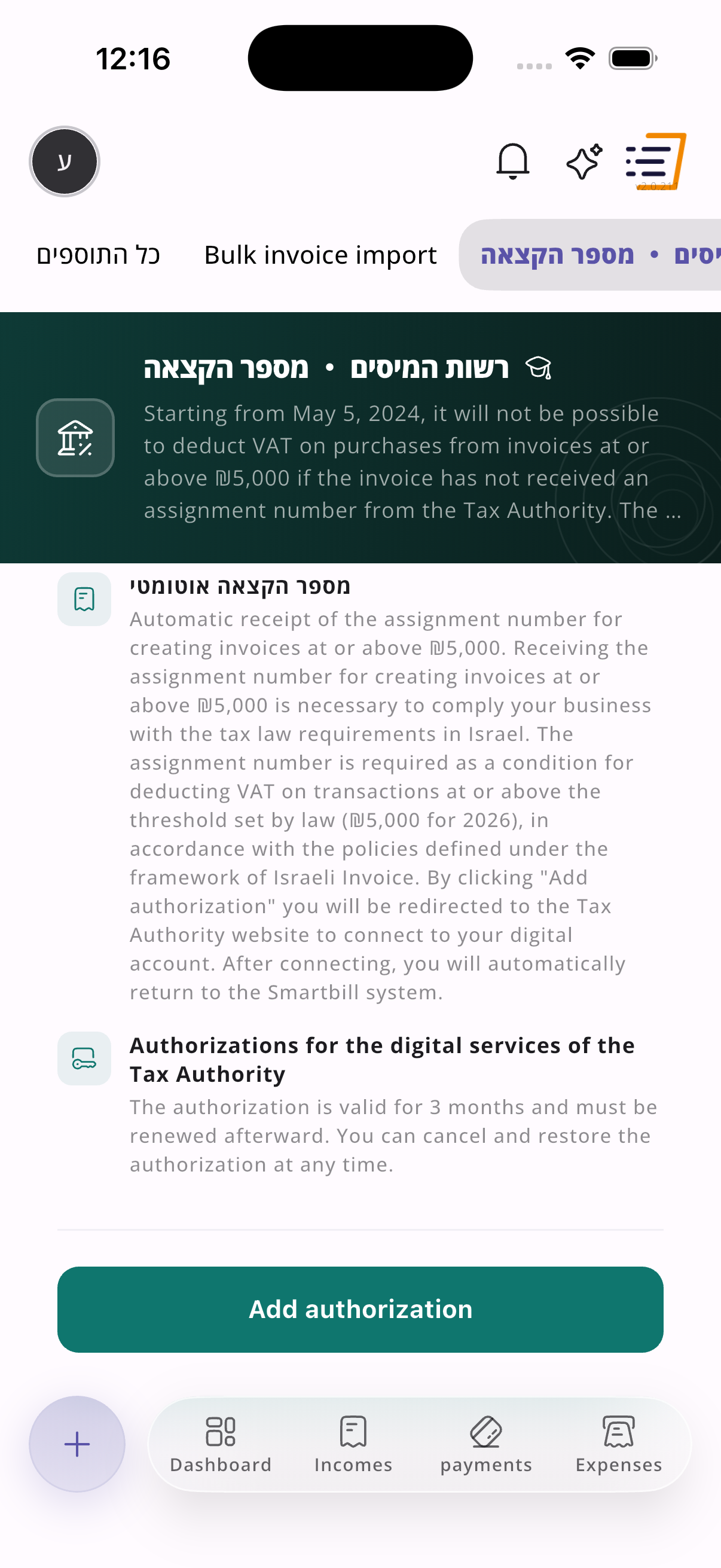
Scroll down and tap Add authorization. The Tax Authority website opens in your phone’s browser.
 Enlarge screenshot
ios — Scroll down to Add authorization to open the Tax Authority website. Some headings remain Hebrew in the English app. The authorization-period wording is from an earlier build; use the renewal instructions in this guide. -
Complete the sign-in steps on that website. Check that you are allowing SmartBill to act for the correct business, then complete the approval.
-
Finish returning to SmartBill in the browser, including signing in if asked. Then return to the app and reopen the connection screen to check its status.
Do not have a Tax Authority login yet? Start with the Tax Authority’s registration and authorization instructions, in Hebrew, then return to these steps. You do not need to give support your password or verification code.
How do I know it worked?
Link to section: How do I know it worked?The connection screen should show the authorization time, Valid until, and a status such as Active authorization. Check the date under Valid until. If you still see Add authorization, the connection has not been completed.
You can now create an invoice as usual. Select a customer with the correct business registration number. When an allocation number is required and the connection is valid, SmartBill requests it during creation. After success, open the invoice and check that the allocation number appears. Connecting does not guarantee that the Tax Authority will approve a particular invoice.
Not every document needs an allocation number. If you are unsure about your invoice, ask your accountant or read the Tax Authority’s Israel Invoice explanation, in Hebrew.
Renew the connection from time to time
Link to section: Renew the connection from time to timeAuthorization does not last forever. Follow the date shown under Valid until. Do not wait until you need to issue an invoice: renew ahead of time once renewal becomes available.
SmartBill displays alerts inside the app as expiry approaches, starting two weeks beforehand. Check the date yourself too if you have not used SmartBill for a while.
- Open Plugins, then the Tax Authority allocation-number connection.
- Select רענון הרשאה (Refresh authorization). This button appears when authorization is close to expiry or has already expired.
- Sign in and approve the connection again on the Tax Authority website, just as you did the first time.
- Return to the connection screen and check for an active status and a new Valid until date.
You do not need to select Cancel authorization to renew. If the connection is active and the refresh button is not showing yet, check the expiry date and return when renewal is available.
Cases and what to do
Link to section: Cases and what to doMatch what you see on screen. Do not issue another invoice just to try again. Some controls on these screens stay in Hebrew even when the app is in English.
You see Upgrade plan or Module required
Link to section: You see Upgrade plan or Module requiredWhat you see: On רשות המיסים ・ מספר הקצאה (Tax Authority · allocation number) you get Upgrade plan, or Module required with Activate the required module in your plan to use this plugin.
What to do: The automatic connection is not in your current plan. Open your business’s plan, activate the required module, then return to the plugin and select Add authorization.
You cannot sign in at the Tax Authority, or the business is missing
Link to section: You cannot sign in at the Tax Authority, or the business is missingWhat you see: After Add authorization, the Tax Authority website opens, but you cannot sign in, no code arrives, or the business is not in the list.
What to do: This is Tax Authority access, not your SmartBill password. The person connecting must be allowed to act for the business. If you do not have a login yet, start with the Tax Authority’s registration instructions, in Hebrew. If the business is missing, ask the owner, the representative, or Tax Authority support. Do not send SmartBill support your password or verification code.
You selected Add authorization and came back without a connection
Link to section: You selected Add authorization and came back without a connectionWhat you see: After returning to SmartBill you still see Add authorization, with no Active authorization and no Valid until date. You may also see Verify your account on Smartbill to complete the verification with the Tax Authority.
What to do:
- Sign in again to the same SmartBill account and the same business.
- On desktop, wait to return to the plugin. On mobile, finish returning in the browser, then reopen the app and רשות המיסים ・ מספר הקצאה.
- If Add authorization is still there, select it again and complete approval on the Tax Authority site, including the correct business.
Success looks like this: Successfully connected to Israeli Invoice, then Authorization time, Valid until, and Active authorization.
You see רענון הרשאה, or there is no refresh button
Link to section: You see רענון הרשאה, or there is no refresh buttonWhat you see: The connection screen shows רענון הרשאה (Refresh authorization), or the authorization is still active and that button is missing. You selected Cancel authorization by mistake.
What to do: To renew, select רענון הרשאה and complete approval on the Tax Authority site again. You do not need Cancel authorization to renew. If the connection is active and the button is not showing yet, check Valid until and come back when renewal is available (usually near expiry). If you cancelled by mistake, connect again with Add authorization.
While issuing, you see Assignment number required or the connection expired
Link to section: While issuing, you see Assignment number required or the connection expiredWhat you see: Assignment number required, or Your connection to Israel tax authority has expired. The main button is Connect to the Tax Authority, or Refresh login after a connection failure. When you select Connect to the Tax Authority, SmartBill displays Your invoice has been saved to drafts for now.
What to do: Select Connect to the Tax Authority or Refresh login, finish connecting or רענון הרשאה (Refresh authorization), then return to the creation flow or reopen its draft. Before issuing again, check the income list to see whether the document was already created. Do not open a new invoice for the same amount just to retry.
You are offered Continue without assignment number or I’ll do it myself
Link to section: You are offered Continue without assignment number or I’ll do it myselfWhat you see: Continue without assignment number, I’ll do it myself, or Skip, I’ll get the number myself. A warning says the document will be created without an allocation number and you will need to get one manually on the Tax Authority website.
What to do: If you want SmartBill to request the number automatically, do not choose these options. Connect or renew first, fill in the customer’s tax ID if it is missing, then continue issuing. Choose to continue without a number only if you will get it yourself on the Tax Authority site.
The customer’s tax ID is missing, or you selected the general customer
Link to section: The customer’s tax ID is missing, or you selected the general customerWhat you see: You are asked for Client VAT / Tax ID and then Update Client, or לקוח כללי לא יכול לקבל מספר קצאה (A general customer cannot receive an allocation number) with בחר לקוח אחר (Select another client).
What to do: Enter the correct tax ID for that customer and select Update Client. If the general customer was selected, choose בחר לקוח אחר and pick the real customer with a tax ID. Skip, I’ll get the number myself does not fix the customer record and does not connect to the Tax Authority.
We failed to get assignment number
Link to section: We failed to get assignment numberWhat you see: The Tax Authority rejected the request. The government reason is shown. You may also see You have 4 options to choose from. Some of those options may show This feature is temporarily unavailable. Please contact support.
What to do: Do not issue another document to retry. Copy the rejection reason and the document number, if there is one, and contact SmartBill support. Do not send passwords or verification codes.
Failed to request assignment number
Link to section: Failed to request assignment numberWhat you see: We were unable to get the assignment number from the Tax Authority, with error text to copy. The buttons are Save to draft and contact support or הפק מסמך ללא מספר קצאה (Create document without an allocation number).
What to do: Copy the error. Choose Save to draft and contact support if you need an automatic allocation number. הפק מסמך ללא מספר קצאה creates a document without a number; you will need to get one manually on the Tax Authority site.
Next steps
Link to section: Next stepsCreate an invoice or receipt · Download and share a document · Plugins and connections