
Your first steps in SmartBill
SmartBill brings your business documents and expenses together. First, make sure you are working in the right business, especially if you have more than one.
New here? Create an account. You can use Google, Apple when available, or email and password. Email registration requires verification before choosing your first business. If you submit the signup form with an existing email and its correct password, SmartBill signs you in to that account. If the password is incorrect, use sign in and password reset.
Choose the screen you use for SmartBill:
- Open SmartBill and sign in.
- Select the business you want to manage. To switch, open the account menu and choose Switch business.
- Open Settings and check the business details before creating your first document.
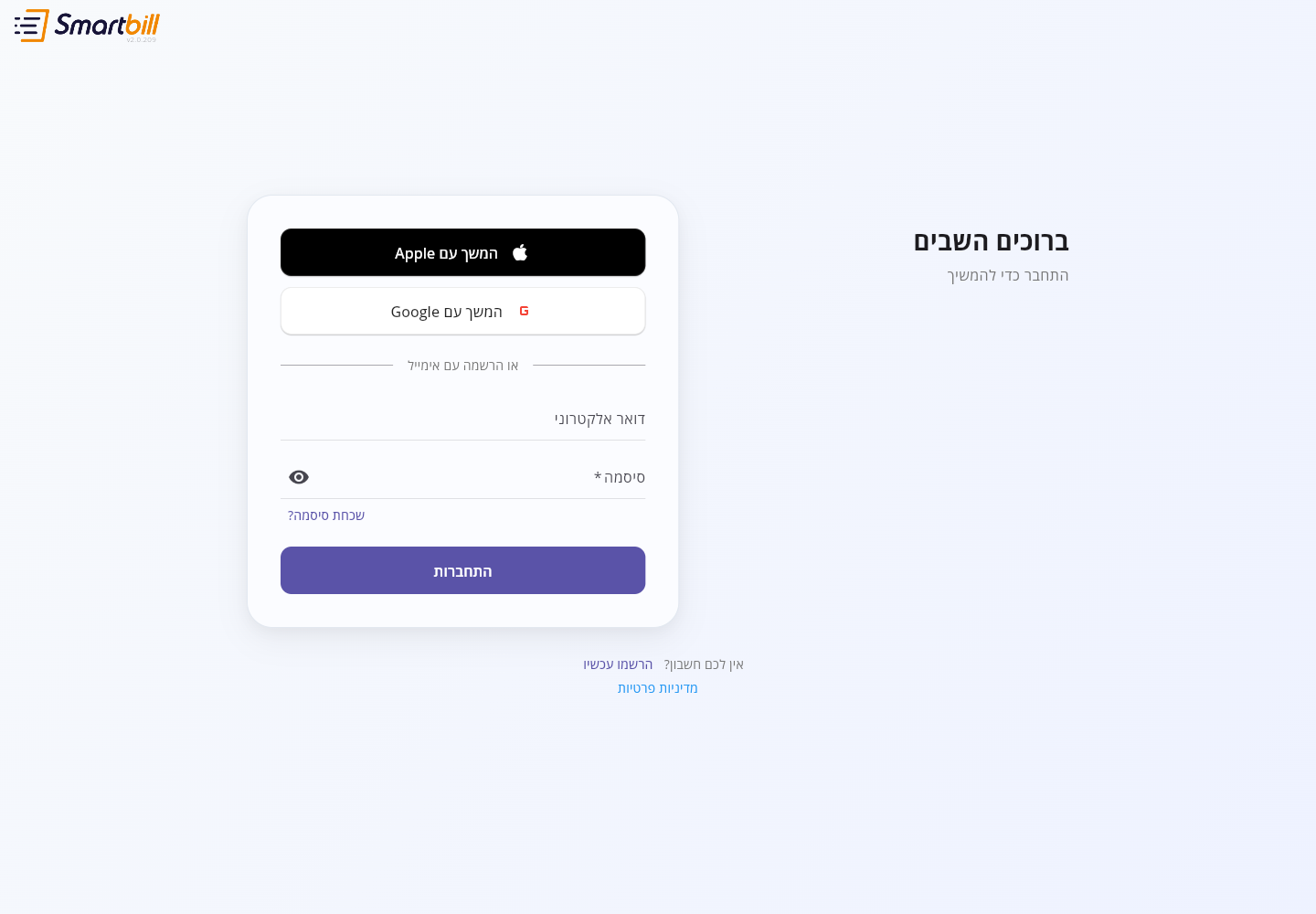 Enlarge screenshot
- Open the SmartBill app and sign in with the account you use on your computer.
- Choose your business. To switch later, tap your account picture and choose Switch business.
- Use the add button to start a document or add an expense.
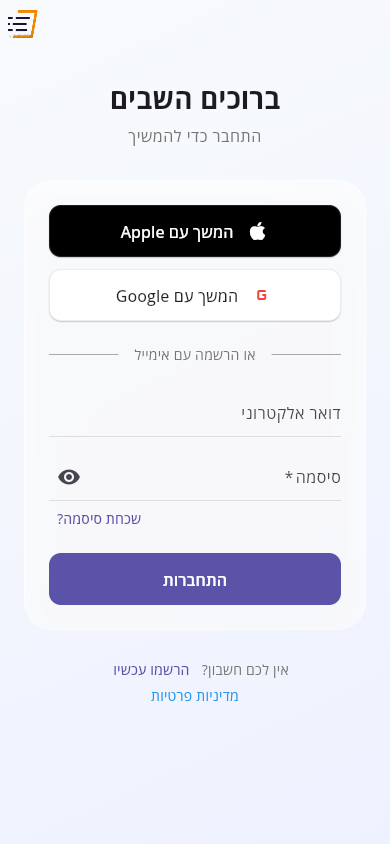 Enlarge screenshot
If the expected business is missing, check which email address you signed in with. To use a different account from the business selection screen, choose Log out at the top. On Choose how to get started, before you create a business, choose Log out at the bottom of the screen. A personal account may show different screens from a business account. If sign-in succeeded but the account did not open, follow what to do when your account does not open.
Invited as an Employee? After accepting the invitation, you enter the Employee workspace without creating a business. From there you can report hours or submit expenses to your employer.
Next: create a document or add an expense.