
Sign in and reset your password
Use the method you registered with: email and password, or Google or Apple when the button is shown.
Choose the screen you use for SmartBill:
- Open the sign-in screen.
- Enter your email and password and sign in, or use the relevant sign-in button.
- If you forgot your password, choose Forgot password?, check the email address, and request a reset.
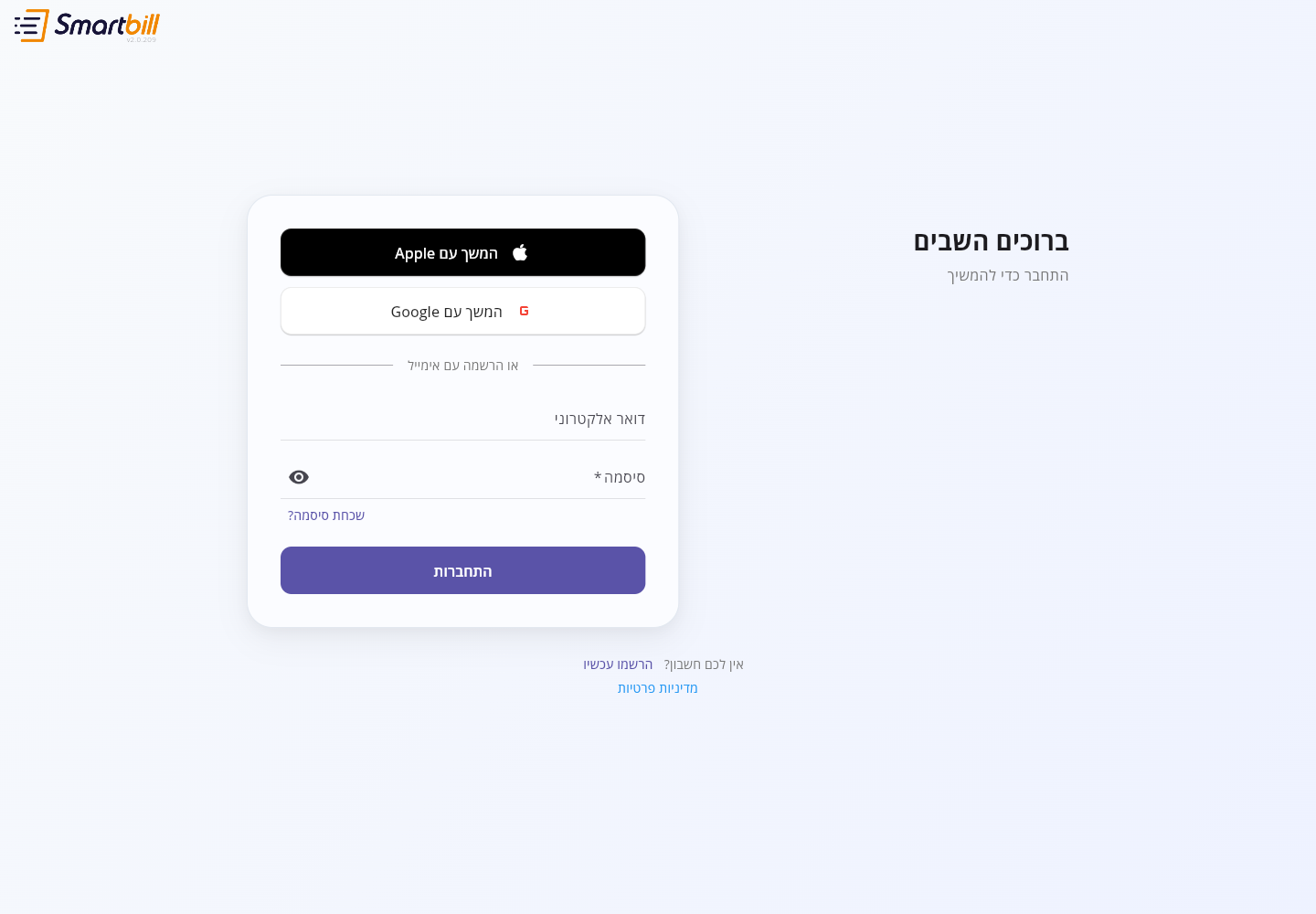 Enlarge screenshot
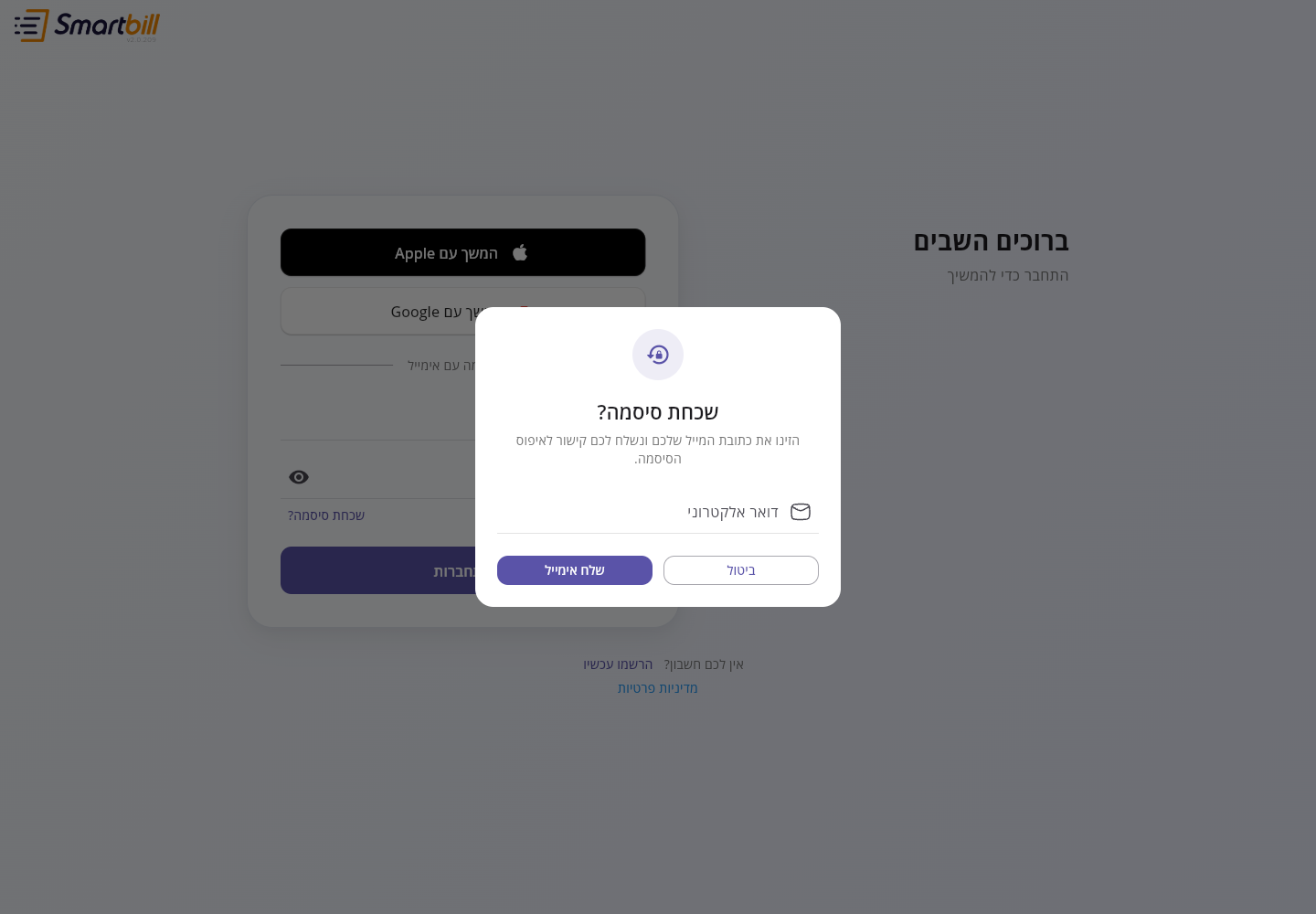 Enlarge screenshot
- Open the app and enter your account details.
- If you choose Google or Apple, complete the window that opens and return to the app.
- To reset a password, tap Forgot password? and follow the email instructions.
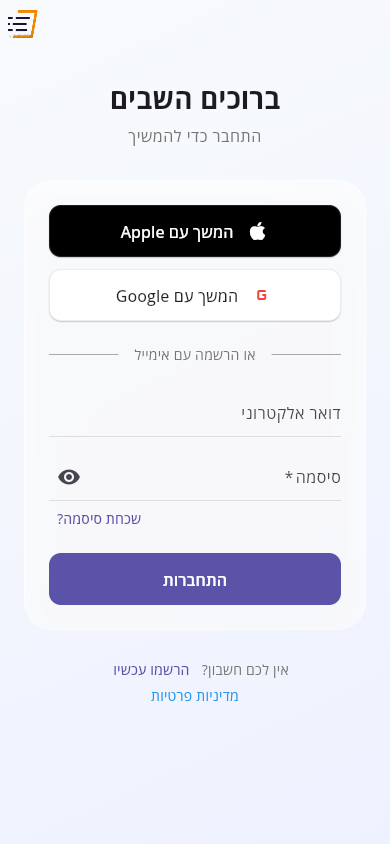 Enlarge screenshot
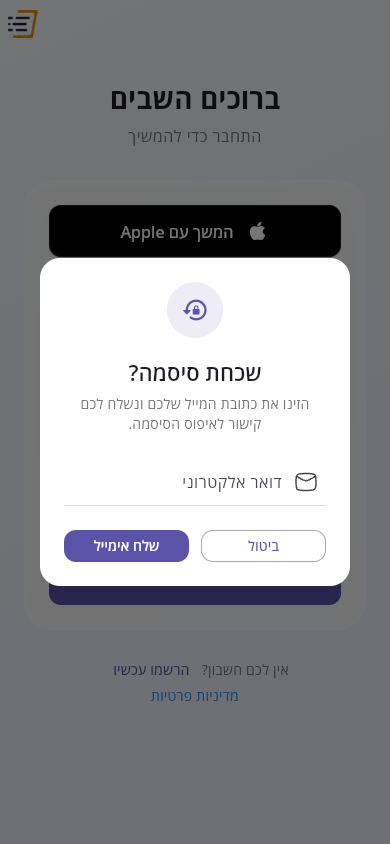 Enlarge screenshot
Check your spam folder too. If you registered with Google or Apple, try that same method again. Do not send your password or sign-in code to support.
If sign-in succeeds but your account does not open
Link to section: If sign-in succeeds but your account does not openAfter you sign in, the Sign In button keeps loading while SmartBill loads your businesses and office. This usually takes a moment.
If SmartBill shows We could not load your account, check your internet connection, then choose Retry or sign in again. SmartBill shows Loading your account… while it retries. If the message returns, contact support and provide your account email and the businesses you expect to access. SmartBill only opens businesses and offices you are still a member of.